Overview
The Calculating GFA using Polygons on Maps feature allows users to draw an area (polygon) around a building on a Map, creating a building footprint. The system uses the building's footprint to calculate an estimated GFA for the building using the following formula:
Gross Floor Area = Footprint * Number of Floors
User Account Requirements
The user account you use to log into Resolver must have Administrator permission to create the Gross Floor Area Trigger.
Related Setup/Information
For more information on editing a system-generated polygon on a Map, please see the Editing a Polygon on a Map article.
For more information on enabling the Gross Floor Area Estimate feature on Maps, please see the Enabling Gross Floor Estimate Feature article.
Navigation
- From the Home screen, click on the System icon.
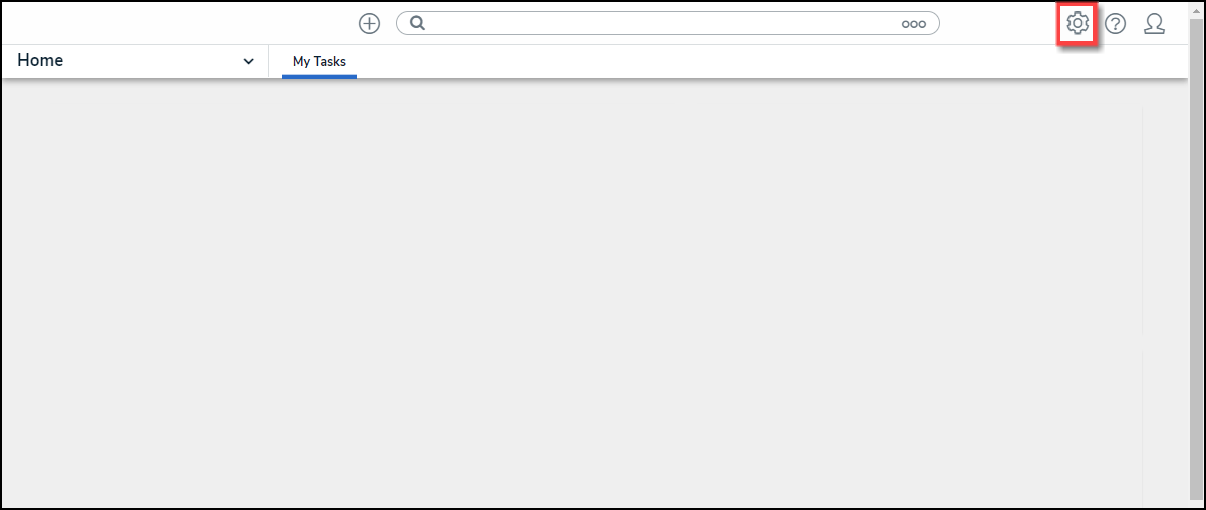
System Icon
- From the Admin Overview screen, click on the Object Types tile under the Data Model section.
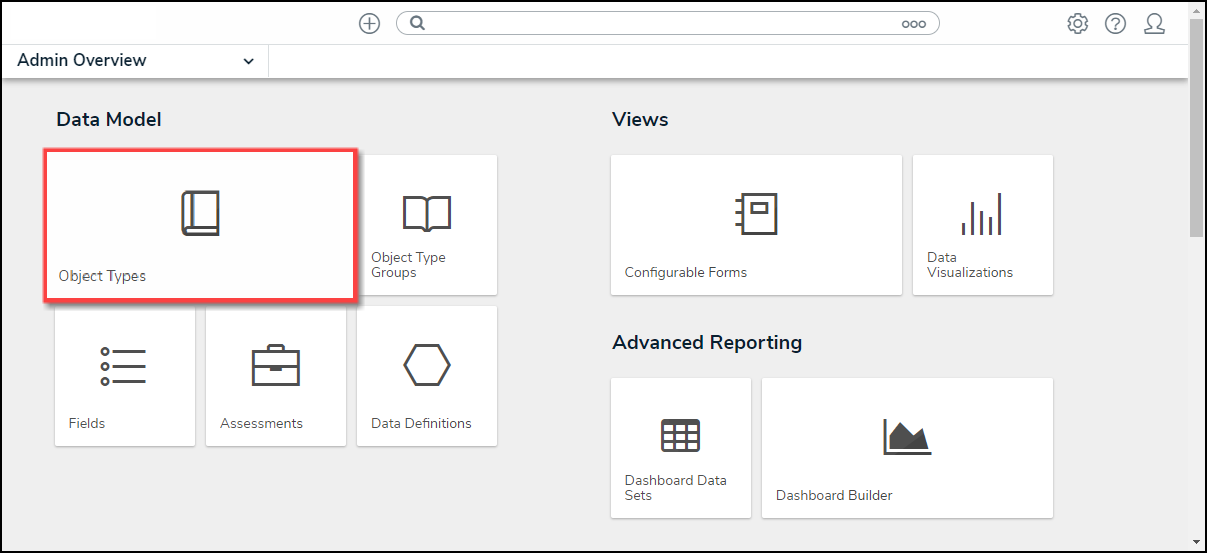
Object Type Tile
- From the Admin Object Types screen, enter an Object Type Name in the Search field to narrow the list and select an Object Type.

Object Type
- From the Admin Edit Object Type screen, click on the Configure Workflow button.

Configure Workflow Button
- From the Admin Edit Workflow screen, click on a Transition under one of the listed States.

Click a Transition
Creating a Gross Floor Area Trigger
- From the Edit Triggers pop-up, click the Settings icon.

Settings Icon
- From the Actions section, click the + Add Action button.

+ Add Action Button
- Select FAAS Calculation Gross Floor Area from the Type dropdown menu.

Type Dropdown Menu
- Enter an action name in the Name field.

Name Field
- Select Building Not Found from the Error State Change Trigger field.

Error State Change Trigger Field
- Click the Create button to create the Trigger Action.

Create Button