Overview
A Relationship connects two or more object types (e.g., Company and Business Unit). Relationships also help you map the big picture for your organization and understand the impacts and accountabilities as you record, track, report, and manage information.
Updating object data requires the object's External Reference ID, which you can get by:
-
Viewing a previously uploaded Data Import Template (e.g., one that has had Object Type field changes since your company’s Core system implementation)
-
Using the Audit Trail feature
User Account Requirements
A user must have Administrator permission to access and perform a Data Import.
Related Information/Setup
Please see the Creating a Data Import Template article for more information on how to fill out the Data Import Template.
Please see the Uploading a Data Import Template article for more information on uploading a Data Import Template file.
Navigation
- From the Home screen, click on the System icon.
System Icon
- From the Admin Overview screen, click on the Data Import tile under the Tools section.
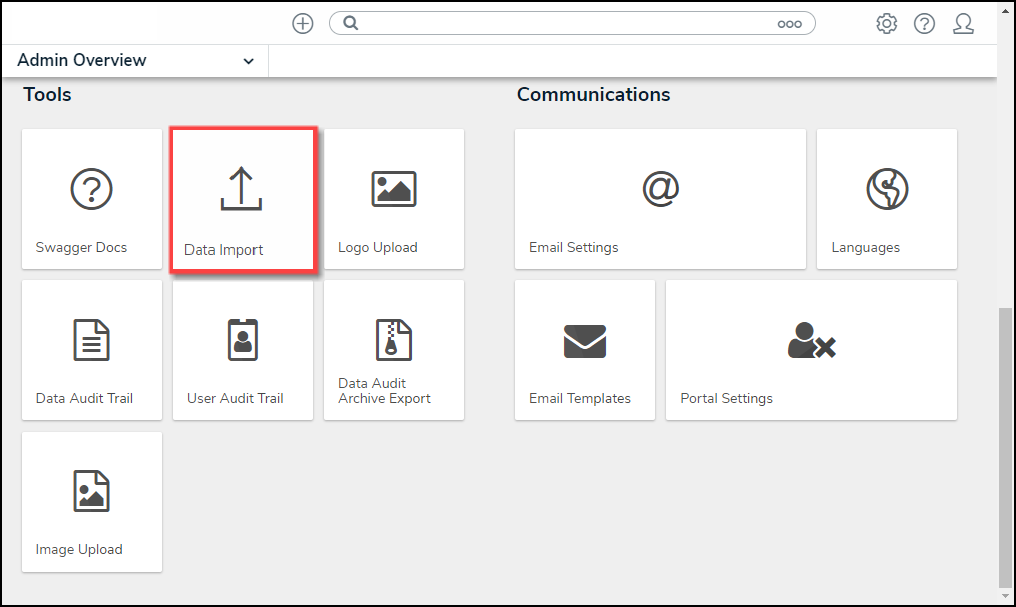
Data Import Tile
Entering Relationship Data on a Data Import Template
- From the Data Import screen, select the Object Types and Relationships to include in the export.
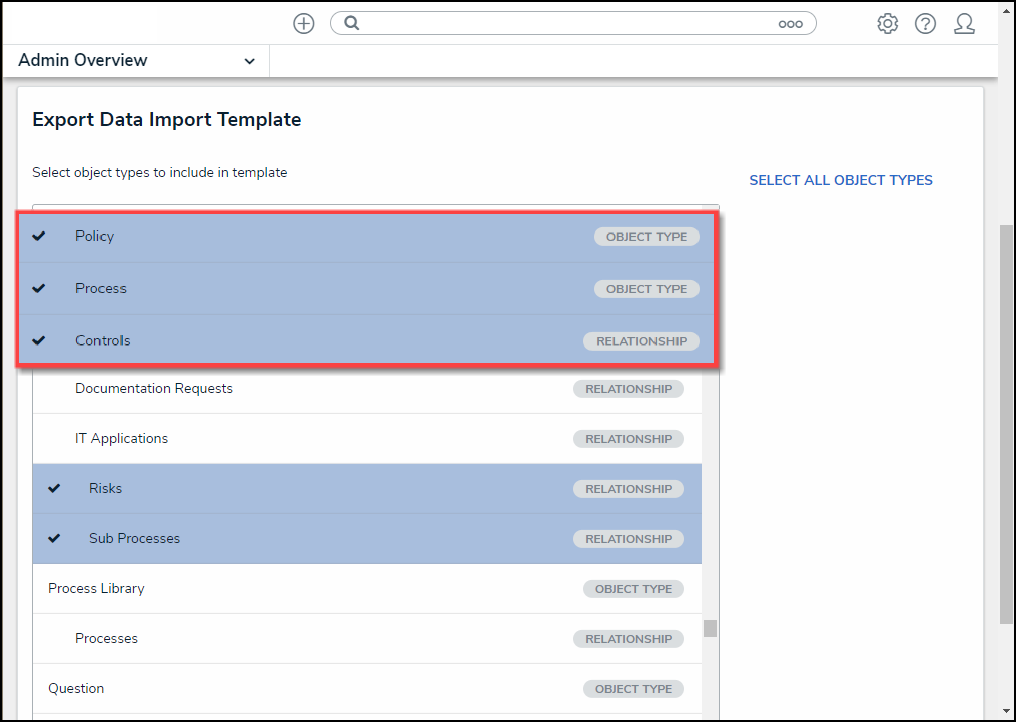
Object Types and Relationships
- Click the Export button. Please see the Creating a Data Import Template article for more information on how to fill out the Data Import Template.
- Open the Data Import Template file and select a Relationship tab from the bottom of the spreadsheet. Relationships are labelled with the Object Type monogram and Relationship name (e.g., R - Incident Type), and object type tabs are labelled with the Object Type name (e.g., Risk).
Spreadsheet Tab Types
- From a Relationship spreadsheet (e.g., CAT - Sub Category), enter the Category's external reference ID in the Category column (OB1 Ext Ref ID) and the Sub Category's external reference ID in the Sub Category column (OB2 Ext Ref ID) creating a relationship between the category and sub category.
External Ref ID Columns
-
The Object Name columns are optional. The Data Import will not fail if the Object Name columns are blank. It is recommended that the Object Name columns are filled out so that you can see what objects are related to one another.
-
Existing relationships between Objects cannot be removed using the Data Import template.
- Save your changes to the Data Import Template file.
- Upload the Data Import Template file. Please see the Uploading a Data Import Template article for more information on uploading a Data Import Template file.